Please read these instructions.
They provide valuable information and tips for making your HyperCase experience successful. |
HyperCase is an interactive systems analysis & design simulation that focuses on the activities an analyst would encounter as part of an analysis team. It provides the student with a rich, realistic and entertaining experience.
Browser Environment
For best results, you should run HyperCase using Netscape Navigator 3.0 or above or Internet Explorer 3.0 or above. These are free for students and faculty. Refer to the Download page.
HyperCase will control some of the browser elements for you, such as turning off the location bar and the button bar. It is best to leave these off to maximize the amount of screen space available.
This will minimize the amount of scrolling required to view diagrams, offices and so on.
If you are using Windows 95, you should click on the top line of the Start bar and, when the cursor turns into a double-headed arrow, drag the top border downward to minimize it.
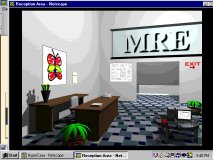 | 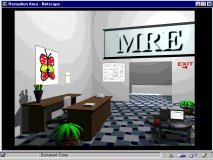 |
| Drag the top of the bar down... | ...and the window positions itself correctly. |
HyperCase Environment
There are several different types of web pages you will encounter.
- An MRE Corporate Web Site, containing a summary of the corporation and the key individuals within it.
- Interviews with key and non-key personnel. To interview a person, click on their link in the corporate telephone directory. Click on the question mark to the left of a question to view the answer. Answers appear on the top, next to the picture of the person being interviewed, giving the flavor that the person is speaking to you. Be sure to click on the links, which are prompts, to obtain valuable information and impressions. The back button takes you to the corporate telephone directory.
- Offices of key employees and other work areas, such as the Canteen. Be sure to click on all the links in an office. Some are distractors but others provide valuable links to documentation, screens and so on. The icons on the left of the screen are for help and tips.
- Data flow and entity-relationship diagrams. Click on the components to display related data, similar to that maintained in a CASE tool environment.
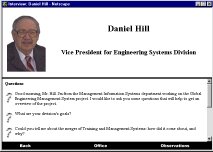 | This is a typical interview. Click on the question marks to bring up answers to the questions displayed. Sometimes there are hyperlinks located in the answers you receive. Clicking on those brings up a list of probing questions. You can return to the origional questions by clicking on the back arrow located at the bottom of the list of probing questions. Clicking on Observations displays observations regarding the individual being interviewed. Clicking on Office brings up the individual's office, shown below. Clicking on Back returns you to the MRE Corporate Directory. |
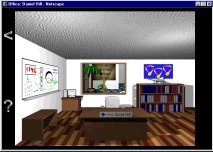 | This is a typical office. Clicking on an object causes a box to pop up with information about it. Click anywhere outside this box to close it. Clicking on the question mark brings up hints. The arrow returns you to the interview. If you are in a room that is not an office, such as the reception area, then these two options are not available. To leave those rooms, simply click on the exits. Clicking on the exit sign in the reception area closes the HyperCase window (keeping your other browser windows open). |
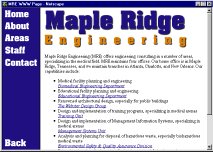 | This is the MRE Corporate Web Page. It contains background information on the company as well as its employees. Home, About, Areas, Staff and Contact represent the five sections of the web page. Back returns you to the reception area. |
Beginning Your Experience
Click Start to begin the adventure! You will be taken to the reception area. From there, begin exploring by clicking on objects in the area. You will find a Corporate Telephone Directory. Click on the cover (a Maple tree) to open the directory and display the names of persons that you can interview.
You can also walk down the hall and look around the building. Continue to walk around to return to the reception area. Remember to look at things by clicking on them as you go through your journey!
Tips:
- The HyperCase Web site is a controlled environment, meaning that the menu bars, buttons, and so on have been turned off. However, you may still click the right mouse button and add a bookmark. However, since there is extensive use of Java Script language in HyperCase, running your browser and using a bookmark to load a specific page will only view that page and its links - not any of the other parts of HyperCase. It is useful to bookmark certain pages, such as a diagram or the start of the diagrams, so that you may quickly return to the diagrams and repository without running the full version of HyperCase.
- You will notice that HyperCase opens a new Browser window when you click Start. You may switch to the home page and go to the Exercises link to work both in HyperCase and read the exercise questions.
- To arrange for an interview, click on the MRE Corporate Directory. This is the small red book located next to the computer in the reception area.
- Background information for MRE employees is now available on the corporate web site. This is a change from the origional HyperCase.
If you encounter any problems with HyperCase, or if you have any suggestions or comments, please let us know by clicking the Feedback link on the Home page and sending us an eMail.
Enjoy!